

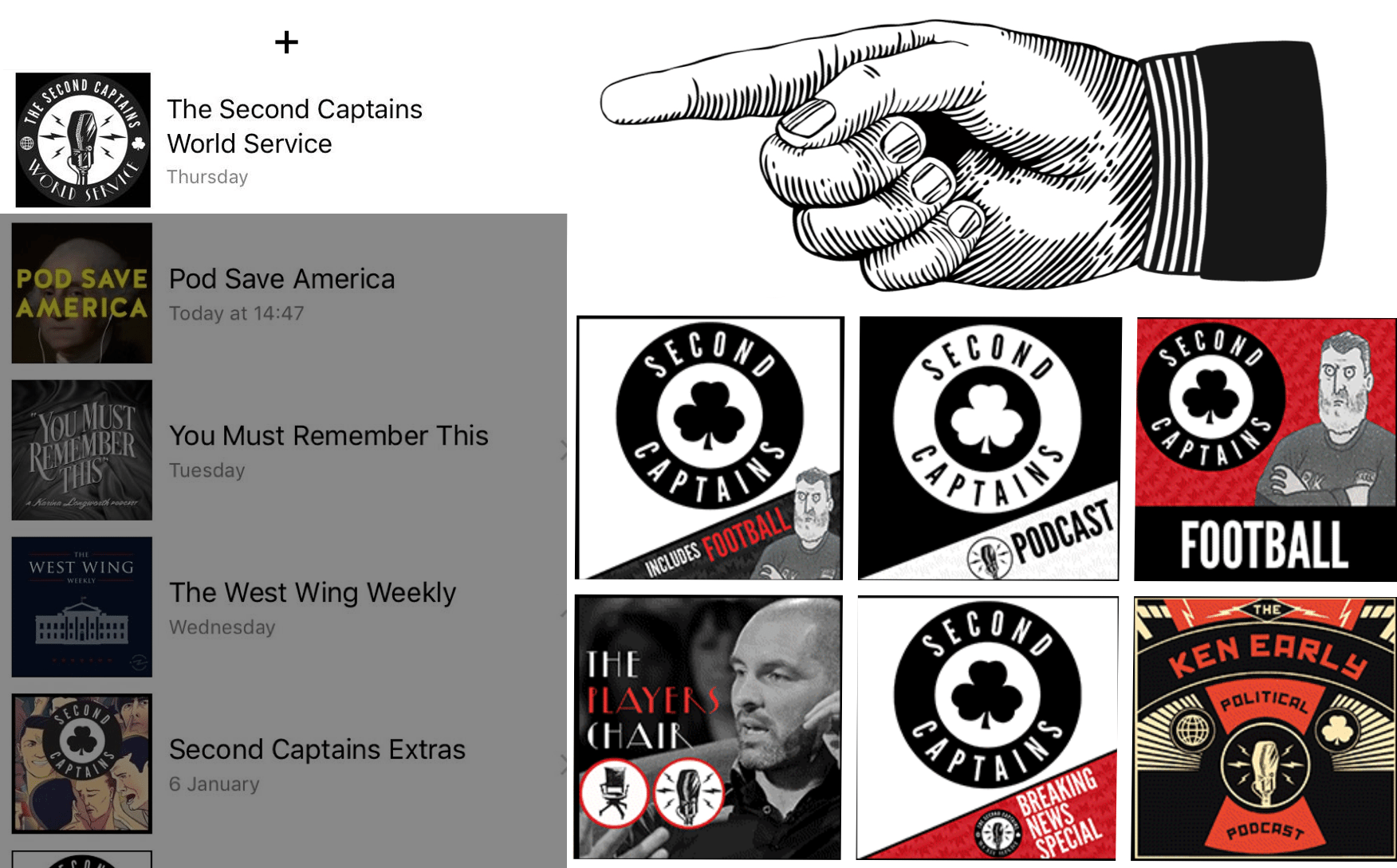
New Member? Get The World Service On Your Pod App Now
Q. Is this going to be really complicated?
A. Nope, not at all.
Now that our q & a session is finished, here’s how you do it:
As soon as you’ve joined up to the World Service on patreon (and thank you again), you’ll receive a link to a private RSS feed (see below).
Copy the link, open your podcasting app of choice and look for the command for adding a podcast feed. In most cases, you’ll be looking for a “+” button.
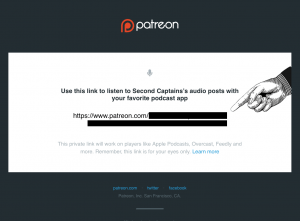
(nah wouldn’t bother trying to and copy and paste that one)
Once you’ve pressed that button, you’ll be prompted to “Add Podcast”, “Add Podcast Manually”, “Add Podcast by URL”, or something along these lines, depending on your podcast player.
Follow that instruction, paste your private link in and enjoy the pods!
Looking for a little more guidance?
Please enjoy these screenshots of some of the most common podcast apps, complete with little helpful arrows for your convenience.
If you’re having any trouble, please email us at [email protected]
Remember, your RSS code is an individual link just for you. Patreon can trace multiple users so please do not share your link as they will shut off your Patreon access, the RSS link itself and you’ll be kicked off our World Service. Now that would be terrible. Feel free to let someone else look at your customised drawing by Ken Early.
By the way, we recommend that you do not use the Patreon app to listen to the shows. The options below are much better.
iOS APPS:
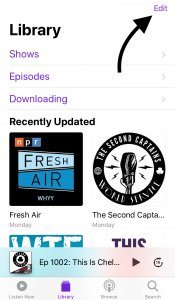
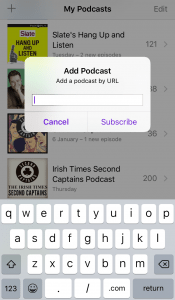
Podcasts By Apple
Click edit when on Library tab
Click Add a Podcast by URL…
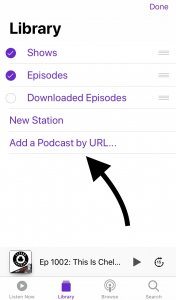
Add the podcast using your URL code and click Subscribe
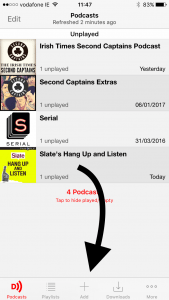
Downcast
Click + Add
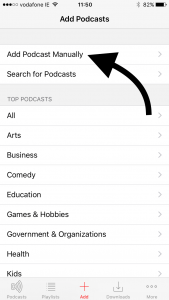
Click Add Podcast Manually
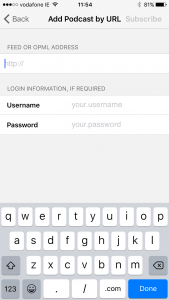
Enter the feed
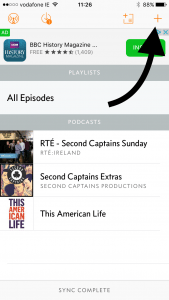
Overcast
Click +
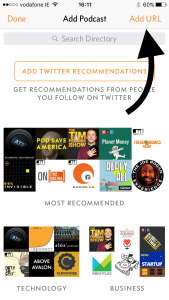
Click ADD URL
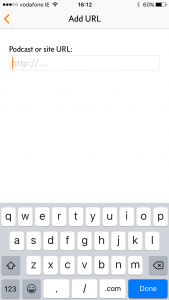
Add the URL
RSSRadio
Click +
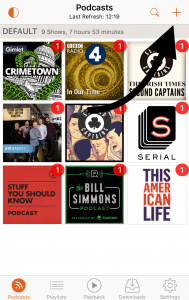
Click More…
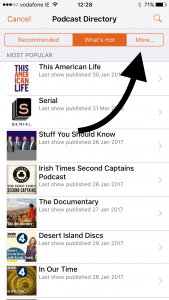
Click Enter the URL Manually
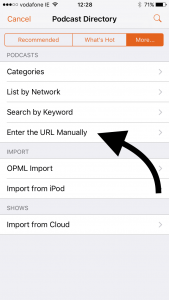
Enter URL manually
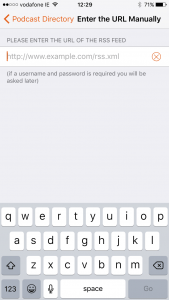
ANDROID APPS:
Podcast Republic
Click Add Podcast by URL
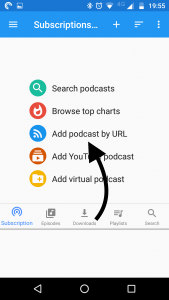
Insert Podcast URL
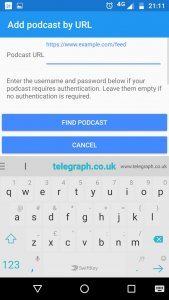
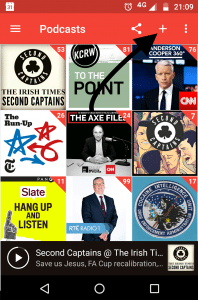
Pocket Casts
Click on the + sign
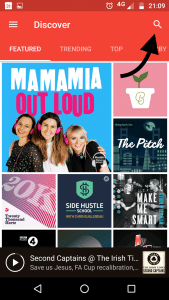
Click on the magnifying glass icon
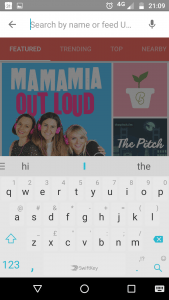
Insert the feed url
Podcast & Radio Addict
Click on the + sign
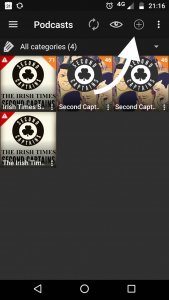
Click on the Add RSS feed, YouTube channel, Soundcloud url
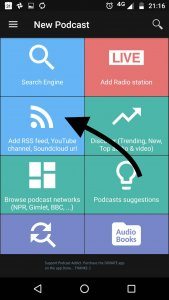
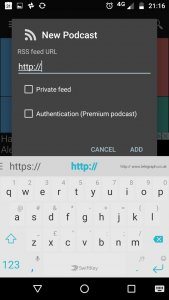
Add RSS feed URL
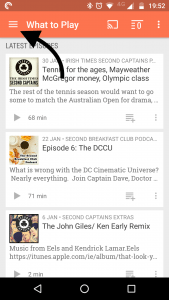
BeyondPod
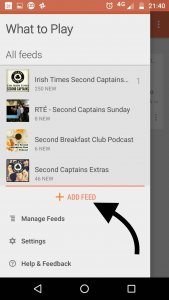
Click the option menu on the left (that’s the stack of 3 horizontal lines in the top left corner)
Click + ADD FEED
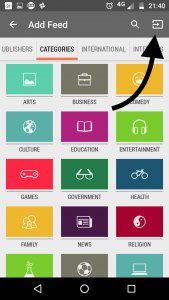
Click the little button that looks like a screen on the top right – to the right of the magnifying glass
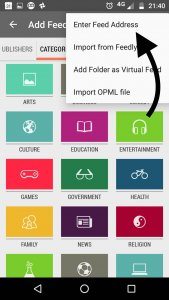
Click Enter Feed Address
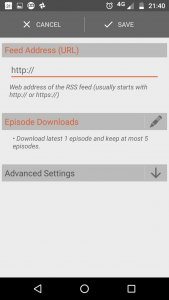
Enter the URL
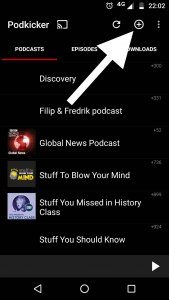
Podkicker
Click +
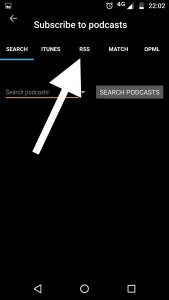
Click RSS
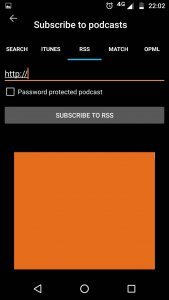
Add RSS feed
Regular iTunes
Click ‘File’ from the menu bar
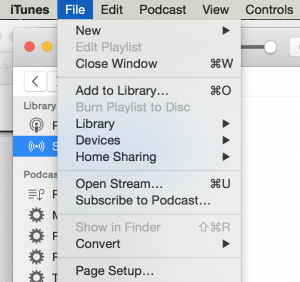
Click ‘Subscribe to Podcast’
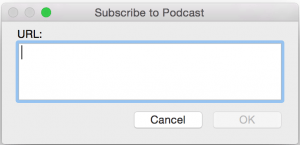
Enter URL